By Michael Stromberg, Hack Reactor graduate (2016) · Last verified November 8, 2026
Git is the first professional tool every new developer has to learn, and it’s the one that trips up beginners most. This guide takes you from nothing installed to your first project on GitHub, then teaches the everyday workflow you’ll use in every bootcamp and every software job. Set aside about 30 minutes and follow along in your terminal.
Git vs. GitHub: what’s the difference?
- Git is a program on your computer that tracks every change to your code. It lets you save snapshots of your work, go back in time, and work on new features without breaking what already works.
- GitHub is a website that stores copies of your Git projects online. It’s where you back up your code, collaborate with other developers, and show employers what you’ve built.
You use Git to save your work. You use GitHub to share it.
GitHub isn’t the only option
GitHub is the most popular place to host Git repositories, but it’s not the only one. Every one of these runs on Git, so the commands in this guide work exactly the same. The only thing that changes is the address you push to.
| Service | What it is and who uses it |
|---|---|
| GitHub | Owned by Microsoft. The largest developer community and home of most open-source projects. Used by most startups and tech companies, and it’s where recruiters look for portfolios. |
| GitLab | Built-in CI/CD pipelines, plus a version companies can run on their own servers. Popular with companies that want everything in one tool. Hack Reactor students build their portfolios on GitLab. |
| Bitbucket | Owned by Atlassian and tightly integrated with Jira and Confluence. Common at larger companies that already plan their work in Jira. |
| Azure Repos | Part of Microsoft’s Azure DevOps. Common at enterprises built on Microsoft tools. |
| Codeberg | A nonprofit, community-run host favored by open-source developers who prefer a non-corporate option. |
This guide uses GitHub because it’s where most beginners start and where most employers will look for your work. Learn Git well and switching hosts takes minutes: your first job might use GitLab or Bitbucket, and you’ll feel at home on day one.
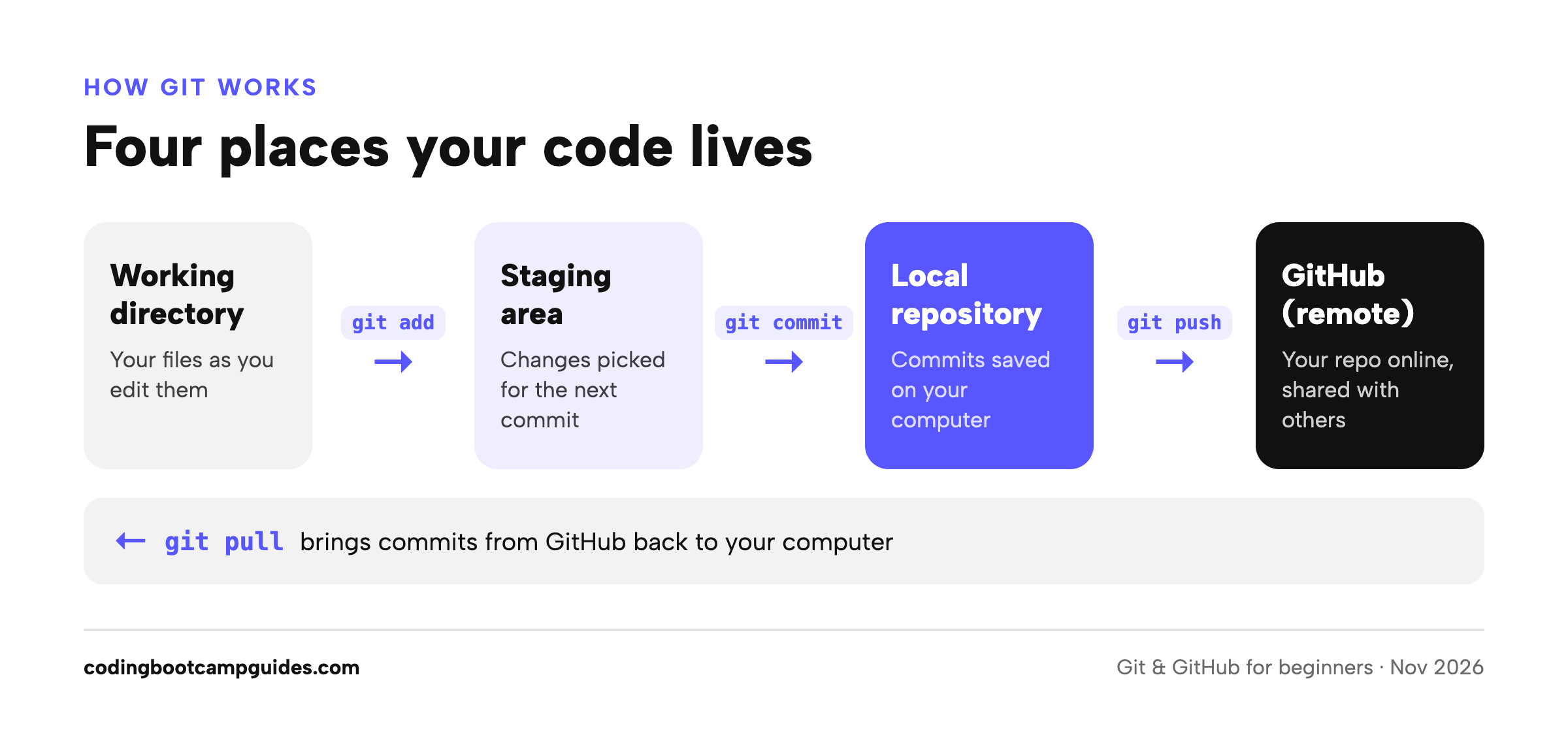
The 6 words you need to know
| Term | What it means |
|---|---|
| Repository (repo) | A project folder that Git is tracking. |
| Commit | A saved snapshot of your project, with a message describing what changed. |
| Staging | Choosing which changes go into your next commit. |
| Branch | A separate line of work, so you can build a feature without touching the main code. |
| Remote | A copy of your repo somewhere else, usually on GitHub. It’s normally called origin. |
| Push / pull | Push sends your commits to GitHub. Pull brings other people’s commits down to you. |
Step 1: Install Git
- Mac: open Terminal and run
git --version. If Git isn’t installed, macOS offers to install Apple’s command line developer tools, which include it. Click Install. (If you use Homebrew,brew install gitgets you the latest version.) - Windows: download Git for Windows from git-scm.com and run the installer. The default options are fine. It also installs Git Bash, a terminal that understands the commands in this guide.
- Linux: use your package manager, for example
sudo apt install giton Ubuntu.
Check that it worked:
git --version
You should see something like git version 2.x.x.
Step 2: Tell Git who you are
Every commit records an author. Set yours once, and use the same email as your GitHub account:
git config --global user.name "Your Name"
git config --global user.email "you@example.com"
git config --global init.defaultBranch main
The last line names your starting branch main, which matches GitHub’s default.
Step 3: Create a GitHub account and connect it
Sign up for a free account at github.com. Pick a professional username; it will appear in the link you put on your résumé.
GitHub no longer accepts your account password when you push code from the terminal. The easiest way to connect your computer is the GitHub CLI:
- Mac:
brew install gh - Windows:
winget install --id GitHub.cli
Then run:
gh auth login
Choose GitHub.com, then HTTPS, and say yes when it asks to authenticate Git with your GitHub credentials. It opens your browser to approve the connection. That’s it: from now on, git push just works.
Step 4: Make your first repository and commit
Create a project folder and turn it into a Git repository:
mkdir hello-git
cd hello-git
git init
Add a file, then ask Git what it sees:
echo "# Hello Git" > README.md
git status
git status lists README.md as an untracked file. Stage it, then commit it:
git add README.md
git commit -m "Add README"
You just saved your first snapshot. Run git log --oneline to see it.
Step 5: Put it on GitHub
With the GitHub CLI, one command creates the repo on GitHub and pushes your code:
gh repo create hello-git --public --source=. --push
Prefer the website? Create an empty repository on github.com (don’t add a README there), then connect and push:
git remote add origin https://github.com/YOUR-USERNAME/hello-git.git
git push -u origin main
Refresh the page on GitHub and your README is there. The -u flag tells Git to remember where to push, so next time you can just type git push.
Step 6: The everyday workflow
Ninety percent of your Git life is this loop:
git pull                      # get the latest changes
# ...edit your code...
git status                    # see what changed
git add .                     # stage everything
git commit -m "Describe what you changed"
git push                      # send it to GitHub
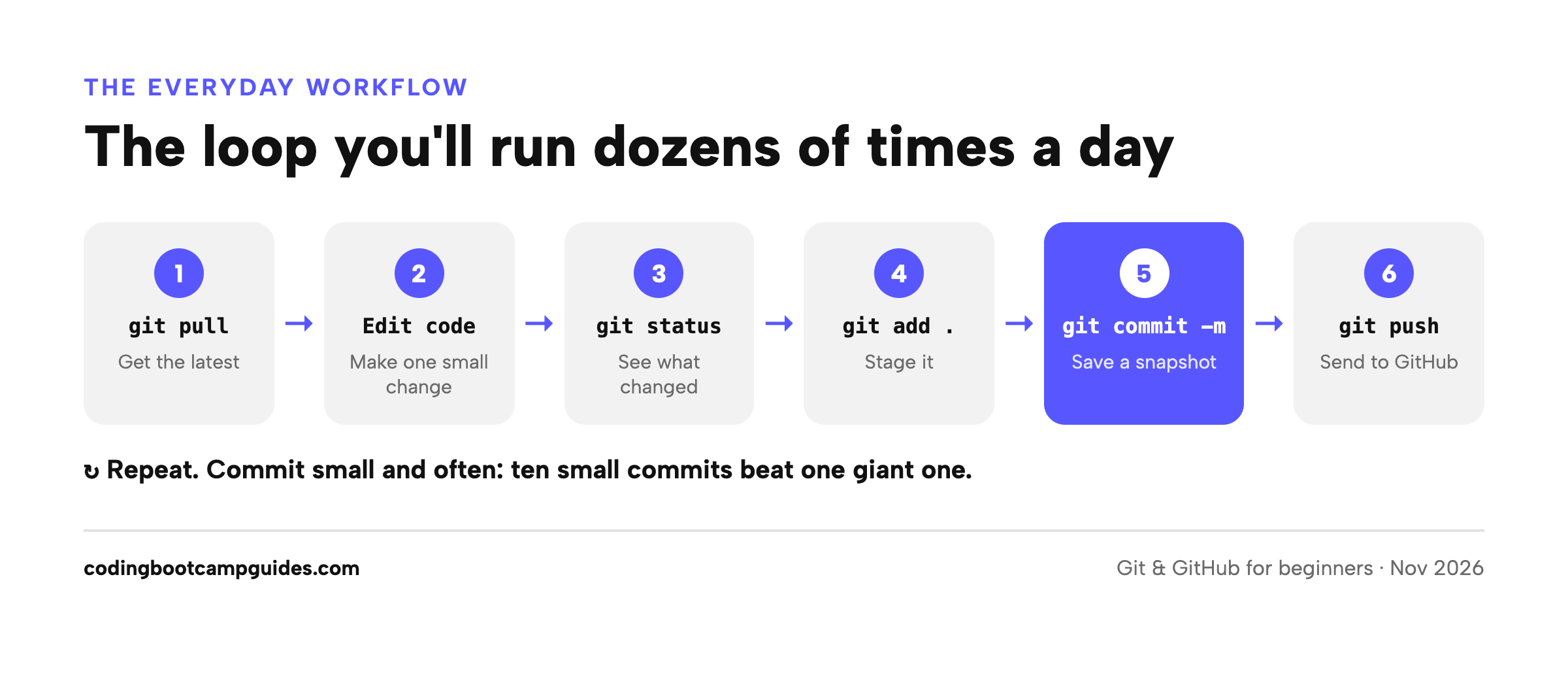
Commit small and often. A good commit message finishes the sentence “This commit will…”: Add login form, Fix total on cart page. Ten small commits are far easier to understand and undo than one giant one.
Step 7: Branches and pull requests
On a team, nobody commits straight to main. You build each feature on its own branch, then ask teammates to review it in a pull request before it’s merged.
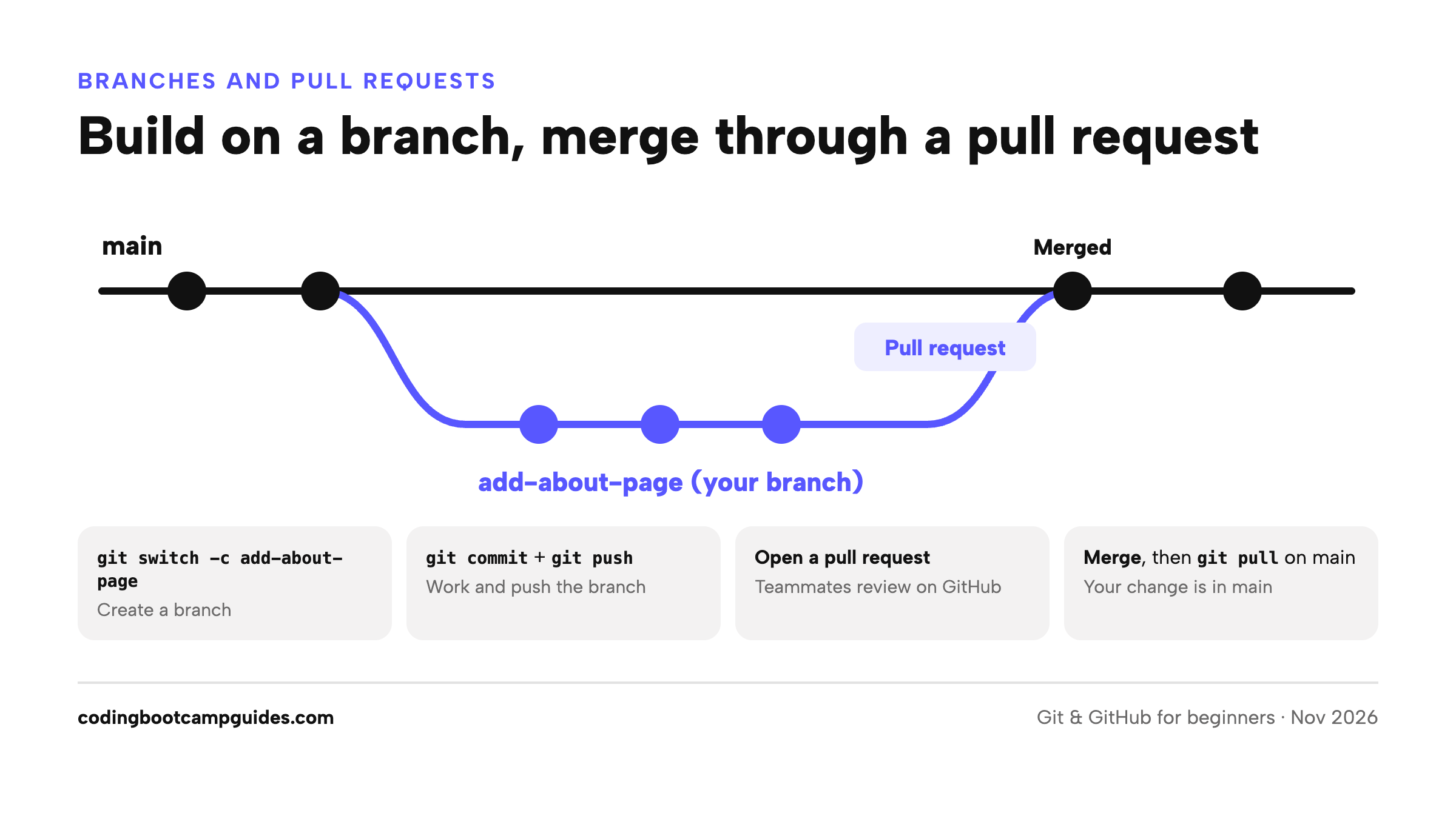
git switch -c add-about-page   # create a branch and move to it
# ...edit and commit as usual...
git push -u origin add-about-page
GitHub then shows a Compare & pull request button. Open the pull request, describe what you changed, and merge it once it’s reviewed. Back in your terminal, update your copy of main:
git switch main
git pull
Use this workflow even on solo projects. Employers who look at your GitHub notice clean branches and pull requests, and it’s exactly how bootcamp team projects and real jobs work.
Keep secrets and junk out of Git
Create a file named .gitignore in your project to tell Git which files to never track:
node_modules/
.env
.DS_Store
Never commit passwords or API keys. Anything you push to a public repo is visible to everyone, and bots scan GitHub for leaked keys within minutes. Put secrets in a .env file and list it in .gitignore. If you do push a key by accident, revoke it immediately: deleting the commit isn’t enough.
Common beginner mistakes, and how to fix them
| Problem | Fix |
|---|---|
| Typo in your last commit message (not pushed yet) | git commit --amend -m "Better message" |
| Forgot to include a file in your last commit (not pushed yet) | git add file.js then git commit --amend --no-edit |
| Want to throw away unsaved changes to a file | git restore file.js (this can’t be undone) |
| Staged a file by mistake | git restore --staged file.js |
| Push rejected: “Updates were rejected” | Someone pushed first. Run git pull, fix any conflicts, then push again. |
| Merge conflict | Open the file, choose the code you want between the <<<<<<< and >>>>>>> markers, delete the markers, then git add and git commit. |
Committed to main instead of a branch | If you haven’t pushed: git branch new-branch saves your work on a branch, git reset --hard origin/main puts main back, and git switch new-branch takes you to your work. |
Git cheat sheet
| Command | What it does |
|---|---|
git status | Show what’s changed and what’s staged |
git add . | Stage all changes |
git commit -m "msg" | Save a snapshot |
git log --oneline | List recent commits |
git diff | Show unstaged changes line by line |
git switch -c name | Create and switch to a new branch |
git switch main | Go back to main |
git pull | Get the latest changes from GitHub |
git push | Send your commits to GitHub |
git clone URL | Download a copy of an existing repo |
Should you let AI handle Git for you?
AI coding tools like GitHub Copilot, Cursor, and Claude Code can write commit messages and even run Git commands for you. They’re genuinely useful for explaining a confusing error message. But learn the commands yourself first. When something goes wrong, and it will, you need to understand what state your repository is in, and technical interviews still expect you to talk through a branching workflow.
From Michael, Hack Reactor ’16: Git was the first thing at bootcamp that made me feel like a real developer, and the first thing that made me panic. Everyone breaks a repository at some point; the people who get comfortable fastest are the ones who run git status constantly and commit in small steps. Your GitHub profile is also your portfolio. Hiring managers click that link on your résumé, so keep your projects public, give each one a clear README, and let your commit history show steady work.
What to learn next
- Practice by cloning one of our JavaScript tutorials‘ examples into a repo and committing your own solutions.
- Read 10 things you should do daily to land a job after a coding bootcamp, where an active GitHub plays a big part.
- Thinking about a bootcamp? Every program will expect you to use Git from week one. Start with our bootcamp guides.
Git and GitHub FAQ
Do I have to use GitHub?
No. GitLab, Bitbucket, Azure Repos, and Codeberg all host Git repositories, and Git works the same way with each. GitHub is the best default for beginners because it’s where most portfolios and open-source projects live.
Is GitHub free?
Yes. A free GitHub account includes unlimited public and private repositories. Git itself is free and open source.
Do I have to use the command line?
No. GitHub Desktop and the Git panel in VS Code let you commit, push, and pull with buttons. But learn the commands too: every tutorial, bootcamp, and job assumes you know them, and the visual tools are much easier once you understand what they’re doing.
What’s the difference between git fetch and git pull?
git fetch downloads new commits from GitHub but doesn’t change your files. git pull fetches and then merges those commits into your current branch. Beginners can use git pull almost all the time.
Should my branch be called main or master?
Use main. It’s GitHub’s default for new repositories. You’ll still see master in older projects; it works the same way.
How long does it take to learn Git?
You can learn the daily workflow in an afternoon. Getting comfortable with branches, pull requests, and fixing conflicts takes a few weeks of regular use on real projects.