By Michael Stromberg, Hack Reactor graduate (2016) · Updated November 11, 2026
Some browser events fire far more often than you need. A user typing a 10-letter search fires 10 input events. Scrolling a page can fire scroll dozens of times a second. If each event triggers an API request or a layout calculation, your app wastes work, slows down, and may even hit rate limits.
Debounce and throttle are the two standard fixes. They sound similar and are easy to mix up, which is exactly why “What’s the difference between debounce and throttle?” and “Implement debounce” are common front-end interview questions. This tutorial explains both, shows when to use each, and builds them from scratch.
The short answer
| Debounce | Throttle | |
|---|---|---|
| What it does | Waits until the events stop for a set time, then runs once | Runs at most once per set time interval, no matter how many events fire |
| During a burst of events | Runs zero times, then once at the end | Runs at a steady rate the whole time |
| Analogy | An elevator door that resets its timer every time someone walks in | A turnstile that lets one person through every few seconds |
| Use it for | Search-as-you-type, autosave, form validation, window resize “done” handlers | Scroll position, infinite scroll, mouse or drag tracking, progress bars, game input |
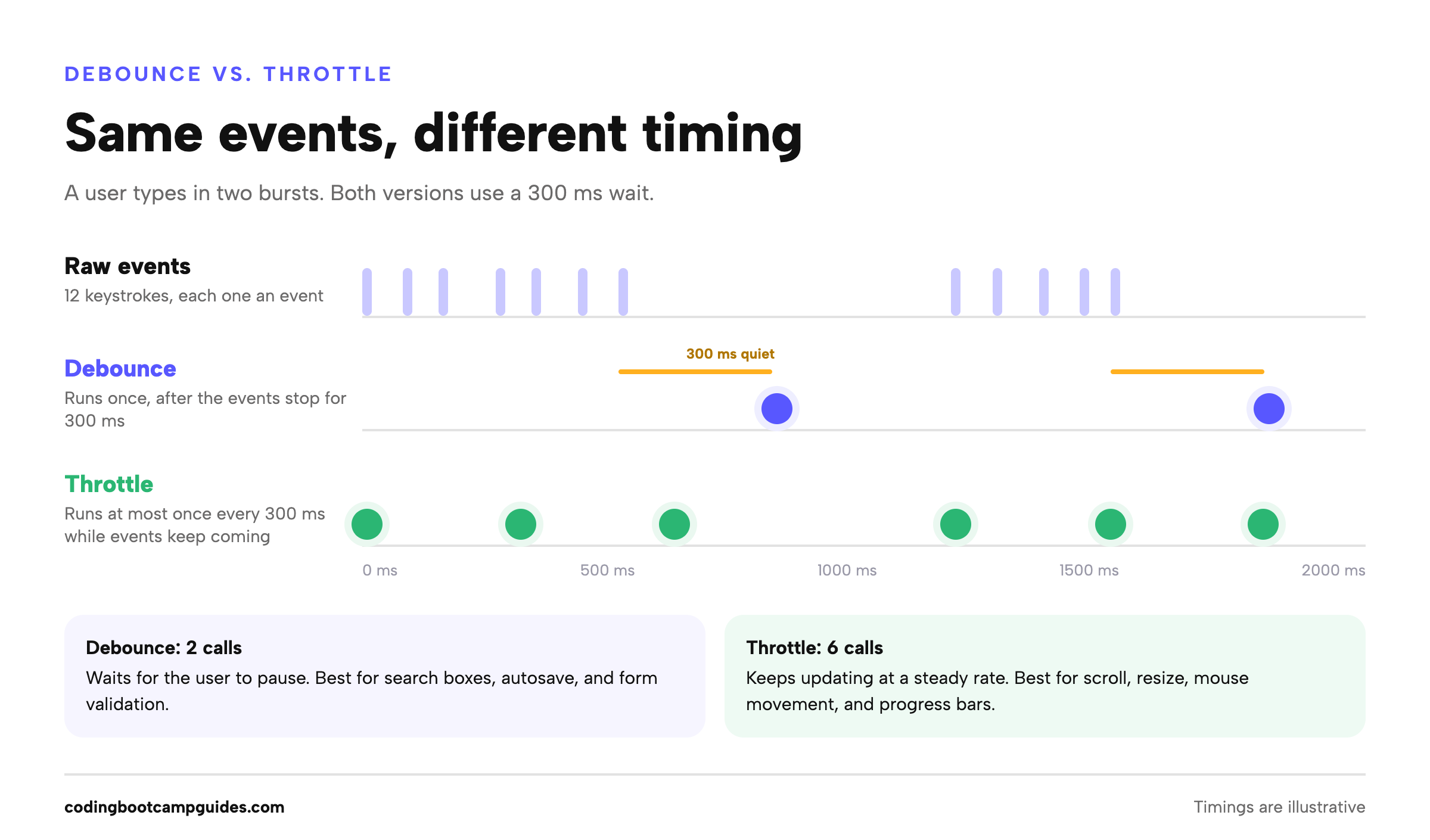
In the example above, a user types 12 characters in two bursts. With a 300 ms wait, the debounced function runs twice, once after each pause. The throttled function runs six times, roughly every 300 ms while the typing continues.
How debounce works
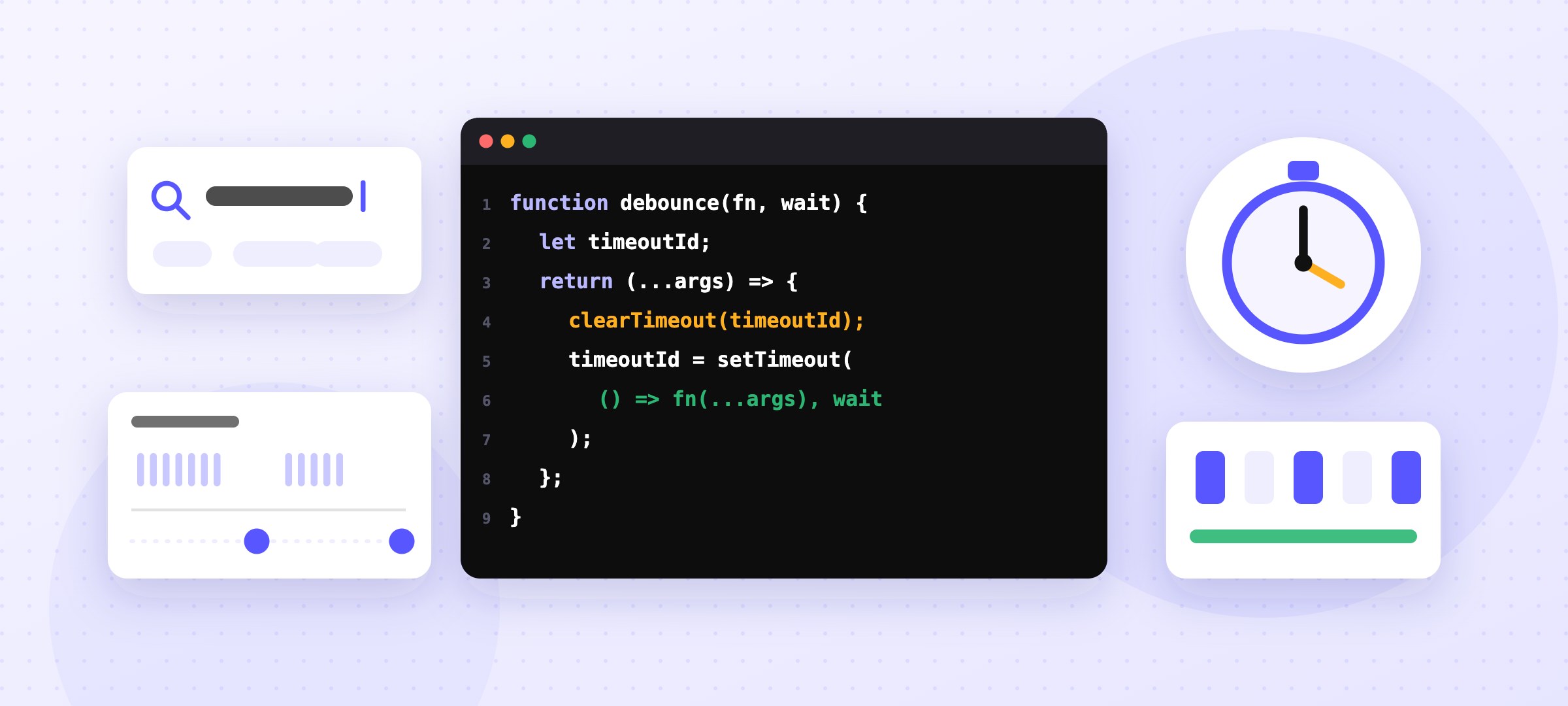
A debounced function delays running your code until a certain amount of time has passed without another call. Every new call cancels the pending one and restarts the timer. Only the last call in a burst gets through.
function debounce(fn, wait) {
  let timeoutId;

  return function (...args) {
    // Cancel the call that was waiting to run.
    clearTimeout(timeoutId);

    // Schedule a new one. If another call arrives first, it cancels this.
    timeoutId = setTimeout(() => {
      fn.apply(this, args);
    }, wait);
  };
}
Four details make this work:
- A closure keeps
timeoutIdalive.debouncereturns a new function, and that function rememberstimeoutIdbetween calls. If closures are new to you, this is a great example of why they matter. clearTimeoutcancels the pending call. Calling it withundefinedon the first run is safe; it simply does nothing.- Rest parameters pass the arguments through.
...argscollects whatever the caller passed, such as an event object, and hands it tofn. fn.apply(this, args)preservesthis. The returned function is a regularfunction, so it gets the caller’sthis, and the arrow function insidesetTimeoutinherits it. That matters when you debounce an object method.
Example: search as you type
const searchInput = document.querySelector('#search');

async function fetchResults(query) {
  const response = await fetch(`/api/search?q=${encodeURIComponent(query)}`);
  renderResults(await response.json());
}

const debouncedSearch = debounce((event) => {
  fetchResults(event.target.value);
}, 300);

searchInput.addEventListener('input', debouncedSearch);
Typing “javascript” now sends one request after the user pauses, instead of ten requests for “j”, “ja”, “jav”, and so on.
Leading-edge debounce and cancel
The version above is a trailing debounce: it runs at the end of a burst. Sometimes you want the opposite, a leading debounce that runs immediately on the first call and then ignores the rest of the burst. A “Submit” button that should only fire once per click flurry is a classic example. It’s also useful to be able to cancel a pending call, for example when a component unmounts.
function debounce(fn, wait, { leading = false } = {}) {
  let timeoutId;

  function debounced(...args) {
    // Leading mode runs only on the first call of a burst.
    const callNow = leading && timeoutId === undefined;

    clearTimeout(timeoutId);
    timeoutId = setTimeout(() => {
      timeoutId = undefined; // The burst is over.
      if (!leading) fn.apply(this, args);
    }, wait);

    if (callNow) fn.apply(this, args);
  }

  debounced.cancel = () => {
    clearTimeout(timeoutId);
    timeoutId = undefined;
  };

  return debounced;
}
How throttle works
A throttled function runs at most once per interval. The simplest version records when it last ran and ignores any call that comes too soon:
function throttle(fn, wait) {
  let lastCall = 0;

  return function (...args) {
    const now = Date.now();

    if (now - lastCall >= wait) {
      lastCall = now;
      fn.apply(this, args);
    }
  };
}
This has one real weakness: it can drop the last event. If the user stops scrolling 100 ms after the last allowed call, the final scroll position never gets processed, so a progress bar or “back to top” button can end up slightly wrong. The fix is a trailing call that runs once the interval is up, using the most recent arguments:
function throttle(fn, wait) {
  let lastCall = 0;
  let timeoutId;
  let lastArgs;
  let lastThis;

  return function (...args) {
    const now = Date.now();
    const remaining = wait - (now - lastCall);
    lastArgs = args;
    lastThis = this;

    if (remaining <= 0) {
      // Enough time has passed: run now.
      clearTimeout(timeoutId);
      timeoutId = undefined;
      lastCall = now;
      fn.apply(lastThis, lastArgs);
    } else if (timeoutId === undefined) {
      // Too soon: schedule one trailing call with the latest arguments.
      timeoutId = setTimeout(() => {
        lastCall = Date.now();
        timeoutId = undefined;
        fn.apply(lastThis, lastArgs);
      }, remaining);
    }
  };
}
This version is what produced the six green calls in the timeline above: one immediately, then one every 300 ms while events keep arriving, and a final call with the last event.
Example: a reading progress bar
const progressBar = document.querySelector('#progress');

function updateProgress() {
  const scrollable = document.documentElement.scrollHeight - window.innerHeight;
  const percent = scrollable > 0 ? (window.scrollY / scrollable) * 100 : 0;
  progressBar.style.width = `${percent}%`;
}

window.addEventListener('scroll', throttle(updateProgress, 100));
For purely visual updates like this one, requestAnimationFrame is another good option: it runs your update right before the browser paints, which naturally limits it to the screen’s refresh rate.
When to use debounce vs. throttle
Ask one question: do you care about the final value, or about staying up to date along the way?
| Situation | Use | Why |
|---|---|---|
| Search box or autocomplete | Debounce | Only the finished query matters |
| Autosave a draft | Debounce | Save once the user pauses, not on every keystroke |
| Validate a field (e.g., “username taken?”) | Debounce | Check after typing stops |
| Recalculate layout after resizing | Debounce | Only the final size matters |
| Prevent double-submitting a form | Leading debounce | Run on the first click, ignore the rest |
| Infinite scroll (“load more near the bottom”) | Throttle | Needs to check regularly while scrolling |
| Track mouse, drag, or touch position | Throttle | Smooth, steady updates |
| Analytics for scroll depth | Throttle | Sample regularly without flooding requests |
For the wait time, a few hundred milliseconds is a common starting point for typing, and around 100 ms for scroll or resize handlers. Tune it by feel: too short and you don’t save much work, too long and the interface feels laggy.
Common mistakes
1. Creating a new debounced function on every event. This looks right but doesn’t debounce anything. Each keystroke gets its own fresh timer, so every keystroke still triggers a request, just 300 ms later:
// Wrong: a brand-new debounced function (and timer) on every keystroke
searchInput.addEventListener('input', (event) => {
  debounce(() => fetchResults(event.target.value), 300)();
});

// Right: create it once, reuse it
const debouncedSearch = debounce((event) => fetchResults(event.target.value), 300);
searchInput.addEventListener('input', debouncedSearch);
2. The same bug in React. A function component re-runs on every render, so const handler = debounce(...) in the component body creates a new timer each time. Keep the timer in a hook instead. A small useDebouncedValue hook covers most search-box cases:
import { useEffect, useState } from 'react';

function useDebouncedValue(value, delay) {
  const [debounced, setDebounced] = useState(value);

  useEffect(() => {
    const id = setTimeout(() => setDebounced(value), delay);
    return () => clearTimeout(id); // Cancel if value changes or the component unmounts.
  }, [value, delay]);

  return debounced;
}

// Usage
function Search() {
  const [query, setQuery] = useState('');
  const debouncedQuery = useDebouncedValue(query, 300);

  useEffect(() => {
    if (debouncedQuery) fetchResults(debouncedQuery);
  }, [debouncedQuery]);

  return <input value={query} onChange={(e) => setQuery(e.target.value)} />;
}
3. Losing this. If you write the returned function as an arrow function, this no longer refers to the caller, and debounced object methods break. Use a regular function for the wrapper, as in the examples above.
4. Forgetting to clean up. A pending debounced call can fire after a component unmounts or a page section is removed. Call cancel() (or clear the timeout) during cleanup.
5. Using debounce where throttle belongs. Debouncing a scroll handler means nothing happens while the user scrolls, so infinite scroll feels broken until they stop.
Should you use Lodash instead?
In production code, often yes. Lodash’s _.debounce(func, wait, options) supports leading, trailing, and maxWait options, plus cancel() and flush() methods. Its _.throttle is built on top of _.debounce: a throttle is essentially a debounce with a maxWait equal to the wait time. If you only need one function, the standalone lodash.debounce and lodash.throttle packages keep your bundle small. Writing them yourself is still worth doing once, both to understand closures and timers and because interviewers ask for it.
In an interview
If you’re asked to implement debounce, start with the 10-line trailing version and talk through the closure, the timer, and why you use apply. Then expect follow-ups:
- “How would you run it immediately instead of at the end?” (leading edge)
- “How would you cancel a pending call?” (
cancel()) - “Now write throttle. How is it different?” (rate limit vs. wait for a pause)
- “What happens to
thisand the arguments?” (rest parameters andapply)
Practicing questions like this is the best preparation for front-end interviews. For more, see our advanced JavaScript tutorials, the algorithm problem breakdowns, and our interview guides.
Debounce vs. throttle FAQ
What is the difference between debounce and throttle?
Debounce waits until events stop for a set time and then runs once. Throttle runs at most once per set interval while events keep firing. Debounce cares about the final value; throttle keeps you updated along the way.
Should I debounce or throttle a search input?
Debounce. You only need results for the query the user finishes typing, so waiting for a short pause avoids a request for every keystroke.
Should I debounce or throttle a scroll handler?
Usually throttle, because you want updates while the user scrolls. Debounce a scroll handler only when you care about where scrolling ends, such as saving the final scroll position.
What delay should I use?
A few hundred milliseconds is a common starting point for typing, and around 100 ms for scroll and resize. Adjust until the interface feels responsive without doing unnecessary work.
Does JavaScript have a built-in debounce function?
No. You write your own with setTimeout and clearTimeout, as shown above, or use a library such as Lodash.

Michael has a diverse background in software engineering, mechanical engineering, economics, and management. After a successful career in mechanical engineering, Michael decided to become a software engineer and attended the Hack Reactor coding bootcamp. Michael enjoys writing about his experiences and helping others start their journies in software development.